What it does
1.0PreFilter in detail.
- 01
Category list with a count of those chosen.
- 02
Direct search by category name.
- 03
Regular expressions to pick several categories in one go.
- 04
The filter stays active until you press Finish on the ribbon.
How it works
2.0PreFilter in four steps.
- 01
Tick the categories in the list, type one's name with Activate or group several with a regular expression.
- 02
Press Pre Filter.
- 03
Select in the model by clicking or with a window: only elements of those categories are picked.
- 04
Press Finish on the ribbon to go back to normal selection.
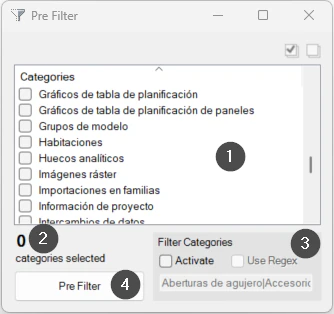
On screen
The Pre Filter window.
- 1Category list.
- 2Number of categories chosen.
- 3Filter by name (Activate) and by regular expression (Use Regex).
- 4Pre Filter button, which turns the filter on.
Screenshot from the user guide, which comes with the licence.
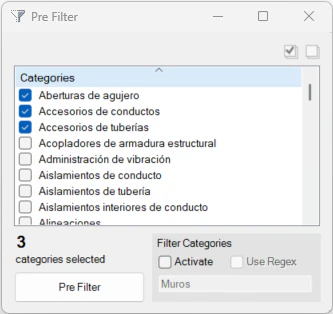
A use case
Window-select only the duct fittings in an area, without picking up walls, floors or pipes.
More tools
3.0More productivity tools from the same group.
- FilterMoreAdvanced filter with extended capabilities and selection memory. Refines complex selections in large-scale projects.
- LevelAutoSetAssigns the nearest reference level to the selected elements by proximity, keeping their position in space. Works with walls, floors, building services and families.
- SelectionExpanderExpands the current selection in several ways: by type, category, host or relationships. Part of FilterMore.
- FilterByParameterFilters elements based on specific parameter values. Part of FilterMore.
- FilterByWarningsSorts the model's warnings by type and category and selects the elements involved. Part of FilterMore.
Want it for your team?