What it does
1.0FilterByParameter in detail.
- 01
Scope: current selection, current view or the whole model, with the option to keep only 3D modelled elements.
- 02
All parameters, in a set order or only those you type in.
- 03
Filters by any of the ticked parameters or by all of them at once (AND mode).
- 04
Buttons to save, extend and restore selections.
How it works
2.0FilterByParameter in three steps.
- 01
Choose the starting set.
- 02
Tick the parameters (and their values) the elements must have.
- 03
Press Filter By Parameter for any of them, or the AND version to require all of them at once.
On screen
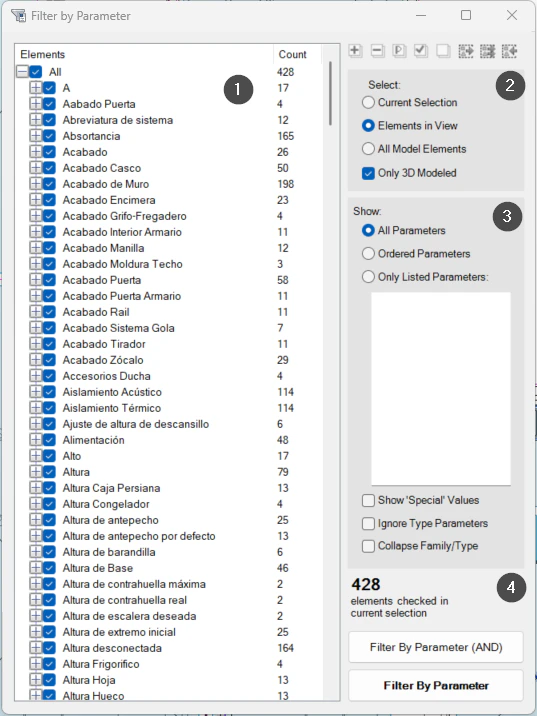
The Filter by Parameter window.
- 1Parameters of the elements and how many elements have each one.
- 2Starting set: selection, view or model.
- 3Which parameters are shown.
- 4Count and the Filter By Parameter and Filter By Parameter (AND) buttons.
Screenshot from the user guide, which comes with the licence.
A use case
Select the walls that have both a given type mark and a given level, using AND mode.
More tools
3.0More productivity tools from the same group.
- FilterMoreAdvanced filter with extended capabilities and selection memory. Refines complex selections in large-scale projects.
- LevelAutoSetAssigns the nearest reference level to the selected elements by proximity, keeping their position in space. Works with walls, floors, building services and families.
- PreFilterLets you preselect the categories to filter before making the selection. Part of FilterMore.
- SelectionExpanderExpands the current selection in several ways: by type, category, host or relationships. Part of FilterMore.
- FilterByWarningsSorts the model's warnings by type and category and selects the elements involved. Part of FilterMore.
Want it for your team?