What it does
1.0ZoneIt in detail.
- 01
Zone boundaries: rooms, spaces, masses or scope boxes.
- 02
Elements to zone: selection, view or the whole model.
- 03
Position by geometric centre or by outline, with touch, intersection or a margin.
- 04
Text: name, name and number or custom parameters, and what to do with several matches.
- 05
Optionally leaves parameters that already have a value untouched.
How it works
2.0ZoneIt in four steps.
- 01
Choose the source elements and tick what acts as a boundary (Rooms, for example).
- 02
Enter the parameter to write to.
- 03
Tick the rule (In Room, geometric centre…).
- 04
Press Run.
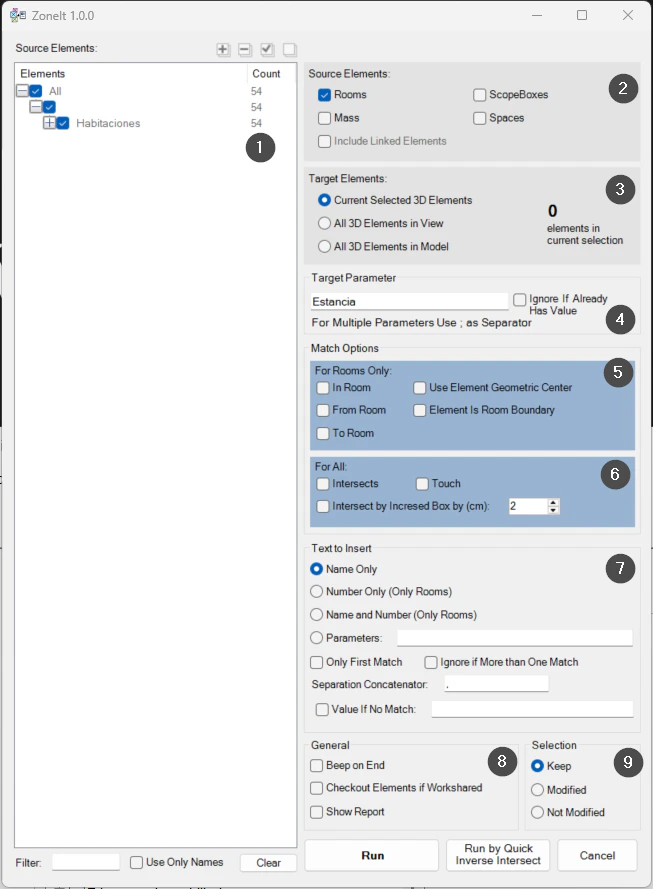
On screen
The ZoneIt window.
- 1Source elements, from the model or from links.
- 2Zone boundaries: rooms, spaces, masses or boxes.
- 3Elements to zone.
- 4Target parameter.
- 5Rules for rooms.
- 6Rules for all: intersection, touch or margin.
- 7Text written.
- 8General options.
- 9Selection at the end.
Screenshot from the user guide, which comes with the licence.
A use case
Write the name of the room each piece of furniture is in into its Comments parameter.
More tools
3.0More management tools from the same group.
- TransferSingleAdvanced transfer of content and standards from one file to another (or to several). Ideal for moving types, views and settings between projects.
- TypeManagerManages every type in the model with fast handling of their properties. Supports quantities, costs and export to multiple formats.
- ElementRenumberingRenumbers different types of elements by selecting them one by one. Ideal for reorganising codes after project changes.
- MassLoadFamiliesLoads loadable families in bulk from a folder. Part of TransferSingle.
- MassSaveFamiliesSaves the project's loadable families in bulk to a folder or subfolders. Part of TransferSingle.
- LocateItAssigns the level to elements based on their position. Part of ZoneIt.
Want it for your team?