What it does
1.0ElementRenumbering in detail.
- 01
Configurable numbering pattern: start number, number of digits with leading zeros, prefix and suffix.
- 02
Writes to the parameter you choose (Number by default).
- 03
Swaps duplicate numbers between elements or allows repeated values.
- 04
Each numbered element changes colour, so you can see at a glance which are left.
- 05
The whole renumbering is undone with a single Undo.
How it works
2.0ElementRenumbering in four steps.
- 01
Choose the element type and set the pattern: start number, digits, prefix and suffix.
- 02
Click the elements in the order you want: each one gets its number and changes colour.
- 03
Press Esc to finish.
- 04
If something is not right, a single Undo reverts the whole numbering.
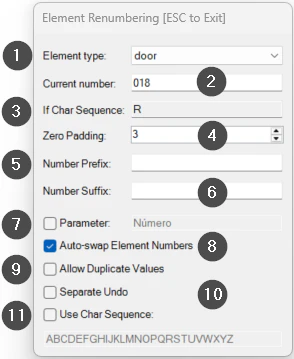
On screen
The Element Renumbering window.
- 1Element type to number.
- 2Start number.
- 3Letter or sequence that goes with the number.
- 4Number of digits, with leading zeros.
- 5Prefix.
- 6Suffix.
- 7Parameter to fill in (Number by default).
- 8Swap duplicate numbers (only without a parameter).
- 9Allow repeated values.
- 10Undo each numbering separately.
- 11Use the character sequence as part of the number.
Screenshot from the user guide, which comes with the licence.
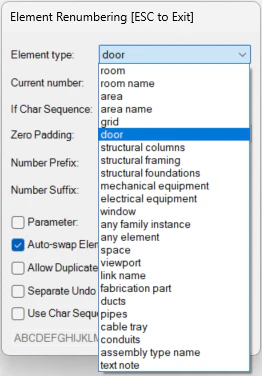
A use case
After a layout change, renumber the doors on a floor in the order of the route: set the pattern and click each door in turn.
More tools
3.0More management tools from the same group.
- TransferSingleAdvanced transfer of content and standards from one file to another (or to several). Ideal for moving types, views and settings between projects.
- TypeManagerManages every type in the model with fast handling of their properties. Supports quantities, costs and export to multiple formats.
- MassLoadFamiliesLoads loadable families in bulk from a folder. Part of TransferSingle.
- MassSaveFamiliesSaves the project's loadable families in bulk to a folder or subfolders. Part of TransferSingle.
- ZoneItAssigns zone and level to elements according to their location in rooms, scope boxes or masses and their properties.
- LocateItAssigns the level to elements based on their position. Part of ZoneIt.
Want it for your team?