What it does
1.0TransferSingle in detail.
- 01
Source file (linked models included) and target file.
- 02
Elements and types ticked one by one, with a regular expression search.
- 03
Renaming before transfer: upper and lower case, prefixes, suffixes and replacements.
- 04
Control over duplicates and dialogs, and over views, legends, dimensions and tags.
How it works
2.0TransferSingle in four steps.
- 01
Open the source file.
- 02
Tick only the elements you need, renaming them if you want.
- 03
Choose the target file and how to handle duplicates.
- 04
Press Transfer Single.
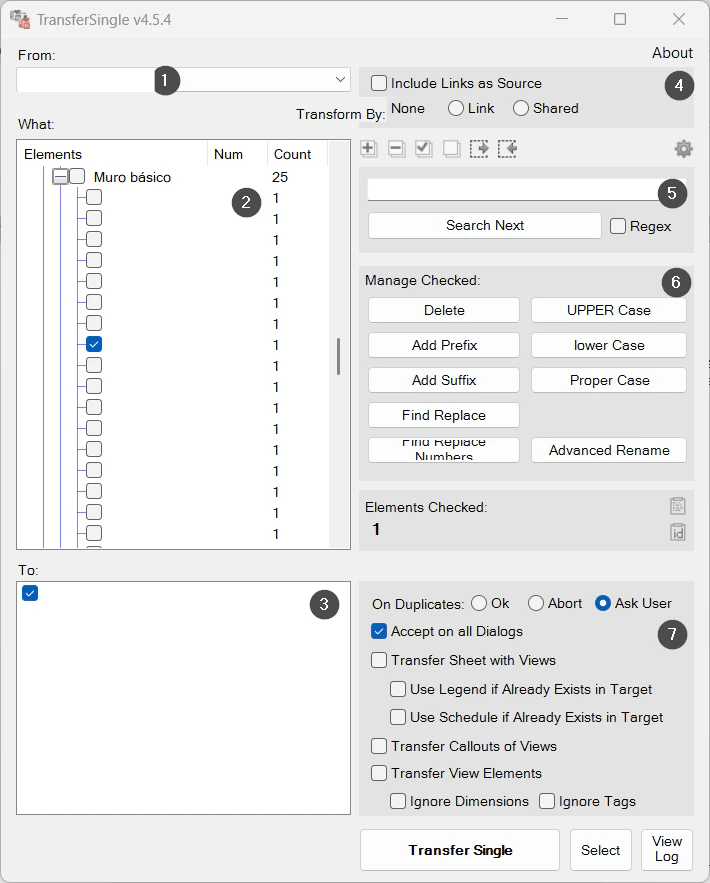
On screen
The TransferSingle window.
- 1Source file.
- 2Elements and types that can be transferred.
- 3Target file.
- 4Links as source and transfer mode.
- 5Search, with regular expressions.
- 6Renaming of the ticked items before transfer.
- 7Duplicates, dialogs, views, legends, dimensions and tags.
Screenshot from the user guide, which comes with the licence.
A use case
Bring only a few wall types and view templates from another project into a new one, without dragging along the rest of its standards.
More tools
3.0More management tools from the same group.
- TypeManagerManages every type in the model with fast handling of their properties. Supports quantities, costs and export to multiple formats.
- ElementRenumberingRenumbers different types of elements by selecting them one by one. Ideal for reorganising codes after project changes.
- MassLoadFamiliesLoads loadable families in bulk from a folder. Part of TransferSingle.
- MassSaveFamiliesSaves the project's loadable families in bulk to a folder or subfolders. Part of TransferSingle.
- ZoneItAssigns zone and level to elements according to their location in rooms, scope boxes or masses and their properties.
- LocateItAssigns the level to elements based on their position. Part of ZoneIt.
Want it for your team?