What it does
1.0ViewCropper in detail.
- 01
Copy the crop region of the active view, apply it to others and restore the original.
- 02
The same with the section box of 3D views.
- 03
Enlarge or shrink the crop on every side by the configured margin.
- 04
Zoom to the elements after cropping.
- 05
Buttons on the Revit tab of your choice.
How it works
2.0ViewCropper in four steps.
- 01
Open the view whose crop you want to copy and press CF (Crop From).
- 02
Select the target views in the project browser and press CS (Crop Set); CR reverts it.
- 03
To enlarge or shrink the crop, use EX or CO with the configured margin.
- 04
In 3D views, the same with SF, SS and SR for the section box.
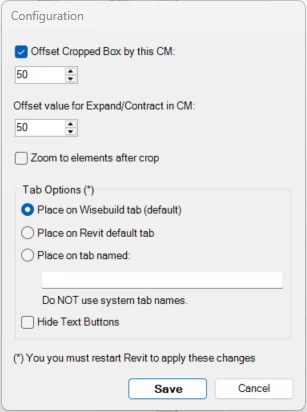
On screen
The ViewCropper settings.
Screenshot from the user guide, which comes with the licence.
A use case
Apply the same framing to every discipline's plan of a level so the sheets match.
More tools
3.0More views tools from the same group.
- ZoomToElementQuickly zooms to an element or set of elements in any view. Part of WBTools.
- SheetComposerMacro language for placing views, schedules or details precisely on a sheet.
- ViewCreatorCreates sheets and views from levels and scope boxes with a single command.
- SheetCreatorCreates sheets in bulk from a tree structure or an Excel table. Part of ViewCreator.
- ViewManagerManages multiple sheets and views with additional commands: duplicate by level, assign revisions and grid spacing.
Want it for your team?