What it does
1.0SyncSchedule in detail.
- 01
Project schedules with a filter by name and regular expressions.
- 02
All to the active sheet or each schedule to the sheet with its name, created if it does not exist.
- 03
A blank first row and marking of the rows processed.
- 04
Report and the option to carry on if there are errors.
How it works
2.0SyncSchedule in three steps.
- 01
With Excel open, tick the schedules to export.
- 02
Choose Schedules To Excel Sheet by Name and Create Excel Sheet if not Found.
- 03
Press Sync To Excel: each schedule goes to its own sheet.
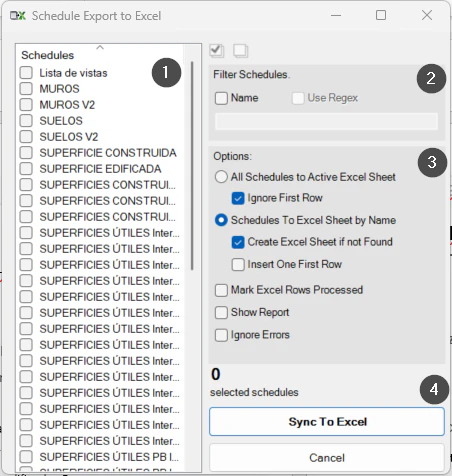
On screen
The Schedule Export window.
- 1Project schedules.
- 2Filter by name, with regular expressions.
- 3Export options.
- 4Count and the Sync To Excel button.
Screenshot from the user guide, which comes with the licence.
A use case
Dump a project's quantities into an Excel workbook, one sheet per schedule, ready for the cost estimate.
More tools
3.0More data tools from the same group.
- ParameterJoinConcatenates parameters and free text within the selected elements. Part of WBTools.
- ParameterSetValueAssigns the value of a specific parameter to the active selection. Part of WBTools.
- RoomToParameterCopies the name, number or another parameter of a room to the elements it contains. Part of WBTools.
- CopyFromHostCopies the value of a parameter from the host to the hosted element. Part of WBTools.
- ExcelSyncSyncs properties Excel ↔ Revit in a fast, configurable two-way process.
Want it for your team?