What it does
1.0ParameterJoin in detail.
- 01
Composition with parameters between hash signs, for example «Area: #Area#».
- 02
Scope: selected elements or all elements in the view.
- 03
Report of the values written.
How it works
2.0ParameterJoin in four steps.
- 01
Select the elements or choose all in the view.
- 02
Enter the target parameter.
- 03
Compose the text, for example «Area: #Area#» (right-click shows the available parameters).
- 04
Press Concatenate.
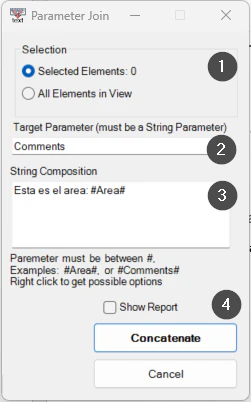
On screen
The Parameter Join window.
- 1Scope: selected elements or all in the view.
- 2Target parameter (text).
- 3Composition, with parameters between hash signs.
- 4Report and the Concatenate button.
Screenshot from the user guide, which comes with the licence.
A use case
Write «Room 103 · Area: 25 m²» into Comments for every room, with the composition «Room #Number# · Area: #Area# m²».
More tools
3.0More data tools from the same group.
- ParameterSetValueAssigns the value of a specific parameter to the active selection. Part of WBTools.
- RoomToParameterCopies the name, number or another parameter of a room to the elements it contains. Part of WBTools.
- SyncScheduleExports schedules to Excel, keeping each parameter exactly as displayed in the Excel document. Part of WBTools.
- CopyFromHostCopies the value of a parameter from the host to the hosted element. Part of WBTools.
- ExcelSyncSyncs properties Excel ↔ Revit in a fast, configurable two-way process.
Want it for your team?