What it does
1.0ScatterLocation in detail.
- 01
Minimum and maximum range per axis (X, Y, Z) and per rotation.
- 02
Fixed steps (multiples of 5 cm, for example) instead of free values.
- 03
Values as a percentage of the element's size.
- 04
Displacement relative to the element or in absolute coordinates.
How it works
2.0ScatterLocation in four steps.
- 01
Select the elements.
- 02
Tick the axes and rotations and set their ranges.
- 03
Choose the orientation.
- 04
Press Scatter Location.
On screen
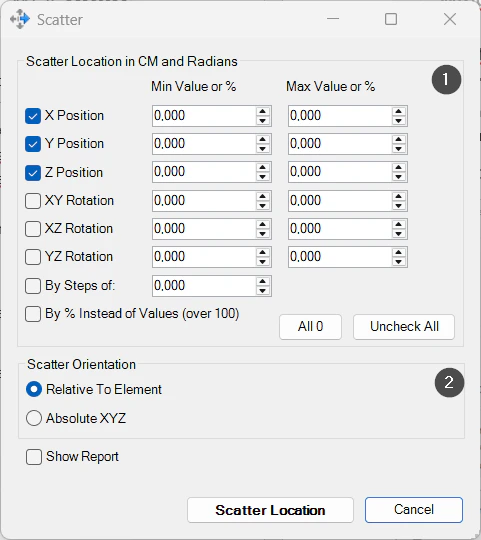
The Scatter window.
- 1Minimum and maximum ranges per axis and rotation, in steps or as a percentage.
- 2Orientation: relative to the element or absolute.
Screenshot from the user guide, which comes with the licence.
A use case
Vary the position and rotation of trees or repeated furniture in a site layout.
More tools
3.0More modelling tools from the same group.
- PushItMoves elements up to the nearest obstacle in a 3D view. Speeds up the manual adjustment of building services and construction elements.
- JoinMultipleJoins multiple elements across categories at once, assigning a priority value to each selected category.
- MatchRotationAligns the Z rotation of almost any Revit element. The perfect complement to the native Align command.
- MoveToPointMoves elements precisely to a selected position. Part of PushIt.
- WallRotationWrites a wall's angle relative to true north or project north into a parameter. Part of WBTools.
- WallRoomFinishCreates walls, floors and ceilings from rooms, with options to match room parameters to family types.
- FloorProjectionProjects floors or roofs onto any element, with options to generate floors from family elements.
- DoorFitWallsWorks out the distance from each door to the nearest finish walls and stores it in parameters of the door.
- PadFromElementsGenerates pads for multiple instances of families placed in the project.
- LokationKeeperKeeps or syncs the location of elements when transferring or copying them between views and projects.
Want it for your team?